Part 3: Screens, effects, saving, and the mouse
This is Part 3 of the build-it-yourself Breakout tutorial. It starts from the game you finished in Part 2 and changes it one feature at a time. Build and run each checkpoint before moving on.
Try the completed Part 3 game!
Download the Part 3 ROMTo try the mouse, connect a SNES Mouse to port 2 in your emulator's input settings (see section 9).
By the end of this part your game will:
- draw the three-piece paddle with a single metasprite call;
- start on a title screen and return to it after each game;
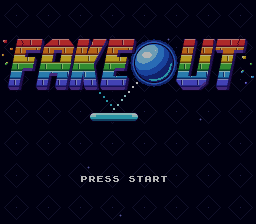
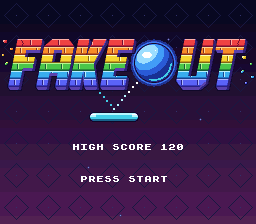
- show the FAKEOUT logo on the title;
- fade to and from black between screens;
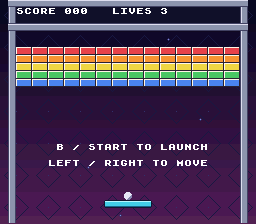
- paint a sky gradient with HDMA, changing the background color down the screen;
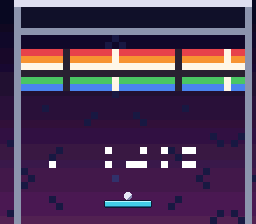
- pixelate the screen with the mosaic effect when you lose a life;
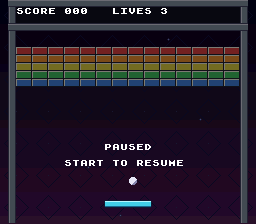
- pause with Start, dimming the playfield behind a "PAUSED" message;
- save the high score in battery-backed cartridge RAM;
- let you steer with the SNES Mouse.
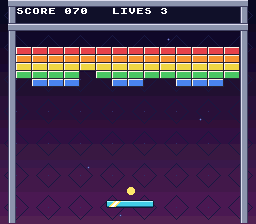
Before you start
You need the finished Part 2 project at <SDK root>\snes-examples\breakout. It should build, and every Part 2 checkpoint should pass. The diffs below assume your code matches the end of Part 2. If you changed things, adapt each edit to your version.
Save a copy of your Part 2 project first, either by committing it to Git or by copying the breakout folder somewhere outside the SDK.
Part 3 adds the FAKEOUT title logo. It reuses the four gameplay PNG files and the two .it modules from Part 2.
Contents
- Draw the paddle as one metasprite
- Add a title screen
- Put the FAKEOUT logo on the title
- Fade between screens
- Paint a sky gradient with HDMA
- Pixelate the screen when a life is lost
- Pause with a dimmed overlay
- Save the high score
- Steer with the SNES Mouse
See also troubleshooting and official references.
1. Draw the paddle as one metasprite
What a metasprite is
In Part 2 the paddle is three 16 x 16 dynamic sprites. draw_sprites loops over them, places each one 16 pixels further right, and picks each piece's frame by hand. That works, but the paddle's shape (three pieces side by side) is hidden inside a loop.
A metasprite describes a group of sprites as data: a list of pieces, each with an offset from the group's position, a frame number, and attributes. One call draws the whole list. PVSnesLib's oamMetaDrawDyn16 does this for 16 x 16 dynamic sprites, so the dynamic engine still copies each piece's graphics to VRAM for you, as in Part 2.
Each piece is a t_metasprite written with METASPR_ITEM(dx, dy, frame, attributes), and every list ends with METASPR_TERM. The frame number counts 16 x 16 frames in paddle.png, eight per row: the left pieces are frames 0 to 5, the middle pieces 8 to 13, and the right pieces 16 to 21. So glimmer frame f uses frames f, 8 + f, and 16 + f.
Describe the paddle
Open src\main.c
In src\main.c, add a macro that builds one paddle frame. PADDLE_ATTR is the same palette and priority that init_sprite gave the paddle in Part 2:
Goal: Describe the paddle's three-piece shape as reusable metasprite data.
src\main.c — in file-scope declarations before prepare_bricks, apply these changes:
#define GLIMMER_FRAMES 5
#define GLIMMER_TICKS  3


#define SFX_TADA    0
#define SFX_STRINGS 1
#define SFX_PIANO 2#define GLIMMER_FRAMES 5
#define GLIMMER_TICKS 3
#define PADDLE_ATTR (OBJ_PAL(0) | OBJ_PRIO(3))
#define PADDLE_PIECES(frame) \
METASPR_ITEM(0, 0, (frame), PADDLE_ATTR), \
METASPR_ITEM(16, 0, 8 + (frame), PADDLE_ATTR), \
METASPR_ITEM(32, 0, 16 + (frame), PADDLE_ATTR), METASPR_TERM
#define SFX_TADA 0
#define SFX_STRINGS 1
#define SFX_PIANO 2The \ at the end of a line continues the macro on the next line. It must be the last character on the line, with no spaces after it.
Below the extern lines, add one list per glimmer frame and a table that picks a list by frame number. They are const, so they stay in ROM:
Goal: Select a complete paddle metasprite for each glimmer frame.
src\main.c — in file-scope declarations before prepare_bricks, apply these changes:
extern u16 playfield_map[];
extern u8 playfield_palette[];


Game game;

static u16 brick_map[BRICK_ROWS][BRICK_COLS * 2];extern u16 playfield_map[];
extern u8 playfield_palette[];
const t_metasprite paddle_frame0[] = {PADDLE_PIECES(0)};
const t_metasprite paddle_frame1[] = {PADDLE_PIECES(1)};
const t_metasprite paddle_frame2[] = {PADDLE_PIECES(2)};
const t_metasprite paddle_frame3[] = {PADDLE_PIECES(3)};
const t_metasprite paddle_frame4[] = {PADDLE_PIECES(4)};
const t_metasprite paddle_frame5[] = {PADDLE_PIECES(5)};
const t_metasprite *paddle_frames[GLIMMER_FRAMES + 1] = {
paddle_frame0, paddle_frame1, paddle_frame2,
paddle_frame3, paddle_frame4, paddle_frame5};
Game game;
static u16 brick_map[BRICK_ROWS][BRICK_COLS * 2];The six lists use the same shape with different frame indices. The pointer table selects one list without rebuilding the shape each frame.
Draw it
The dynamic engine copies new graphics only when a sprite's oamrefresh is set. oamMetaDrawDyn16 copies the first piece's oamrefresh to every piece, so setting it on sprite 1 refreshes the whole paddle. Track the frame that is on screen:
Goal: Remember which paddle frame is displayed so refreshes happen only on changes.
src\main.c — in file-scope declarations before prepare_bricks, apply these changes:
static int shown_state = -1;
static int paddle_glimmer;
static int ball_glimmer;
static int shown_state = -1;
static int paddle_glimmer;
static int ball_glimmer;
static int shown_paddle_frame;
The cache tracks the whole metasprite rather than each piece separately.
Replace the paddle loop in draw_sprites:
Goal: Remove the loop index no longer needed for drawing paddle pieces.
src\main.c — in draw_sprites, apply these changes:
static void draw_sprites(void)
{
    int i;
    int paddle_frame;
int ball_frame;static void draw_sprites(void)
{
int paddle_frame;
int ball_frame;The metasprite draw call will iterate its piece list internally.
Goal: Draw and refresh the entire paddle from its selected metasprite list.
src\main.c — in draw_sprites, apply these changes:
    show_frame(0, ball_frame);
    oamDynamic8Draw(0);

    for (i = 0; i < 3; ++i)
    {
        oambuffer[i + 1].oamx = game.paddle_x + i * 16;
        oambuffer[i + 1].oamy = PADDLE_Y;
        show_frame(i + 1, i * 8 + paddle_frame);
        oamDynamic16Draw(i + 1);
    }


} show_frame(0, ball_frame);
oamDynamic8Draw(0);
if (shown_paddle_frame != paddle_frame)
{
shown_paddle_frame = paddle_frame;
oambuffer[1].oamrefresh = 1;
}
oamMetaDrawDyn16(1, game.paddle_x, PADDLE_Y,
(u8 *)paddle_frames[paddle_frame], paddle_tiles,
OBJ_LARGE);
}The first argument, 1, is the first sprite slot. The paddle has three pieces, so it uses slots 1, 2, and 3, the same slots as in Part 2. OBJ_LARGE selects the large size, which is 16 x 16 because of OBJ_SIZE8_L16.
oamMetaDrawDyn16 fills in each piece's frame, attributes, and graphics pointer itself, so the paddle no longer needs init_sprite. In init_video, remove those calls and set the new variable (remember: globals without a value are not zeroed):
Goal: Let the metasprite define its own pieces and force their first graphics refresh.
src\main.c — in init_video, apply these changes:
    setPalette(sprite_palette, 128, 16 * 2);
    paddle_glimmer = 0;
    ball_glimmer = 0;

    init_sprite(0, ball_tiles, 0, OBJ_SIZES);
    for (i = 0; i < 3; ++i)
    {
        init_sprite(i + 1, paddle_tiles, i * 8, OBJ_SIZEL);
    }

setMode(BG_MODE1, 0); setPalette(sprite_palette, 128, 16 * 2);
paddle_glimmer = 0;
ball_glimmer = 0;
shown_paddle_frame = -1;
init_sprite(0, ball_tiles, 0, OBJ_SIZES);
setMode(BG_MODE1, 0);The -1 frame cache forces the initial draw to upload all paddle pieces. Keep int i; in init_video; a later loop still uses it.
Checkpoint: Build and run. The game looks and plays exactly as at the end of Part 2: the paddle is in one piece, follows the D-pad, and still shines from left to right when the ball lands on it. If any piece is missing or wrong, check the frame numbers in PADDLE_PIECES.
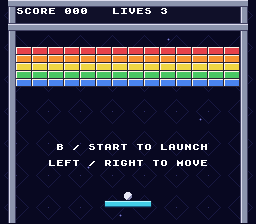
2. Add a title screen
Screens and states
game.state already tracks READY, PLAYING, GAME_OVER, and WON. Those are states inside a game. A title screen sits outside the game, so main.c gets its own, higher-level variable: which screen is showing. Each screen has three parts:
- a
show_function that draws it once, when you switch to it; - an
update_function that runs every frame while it is showing; - a value in
enum Screen.
Add the screen variable
Open src\main.c
In src\main.c, add the enum after the sound-effect names and a variable after the others:
Goal: Distinguish the title screen from the game screen independently of gameplay state.
src\main.c — in file-scope declarations before prepare_bricks, apply these changes:
#define SFX_MARIMBA 3
#define SFX_COWBELL 4


extern char SOUNDBANK__;

extern u8 paddle_tiles[];#define SFX_MARIMBA 3
#define SFX_COWBELL 4
enum Screen
{
SCREEN_TITLE,
SCREEN_GAME
};
extern char SOUNDBANK__;
extern u8 paddle_tiles[];The screen enum belongs to presentation; READY and PLAYING still belong to Game.
Goal: Track which screen should receive each frame's update.
src\main.c — in file-scope declarations before prepare_bricks, apply these changes:
static int paddle_glimmer;
static int ball_glimmer;
static int shown_paddle_frame;
static int paddle_glimmer;
static int ball_glimmer;
static int shown_paddle_frame;
static int screen;
The screen variable selects a title or gameplay handler.
Game over and victory now return to the title, so change their prompts in draw_text:
Goal: Make the game-over prompt describe returning to the title.
src\main.c — in draw_text, apply these changes:
    else if (game.state == STATE_GAME_OVER)
    {
        consoleDrawText(11, 18, "GAME OVER");
        consoleDrawText(7, 20, "B / START: NEW GAME");
    }
    else if (game.state == STATE_WON)
{ else if (game.state == STATE_GAME_OVER)
{
consoleDrawText(11, 18, "GAME OVER");
consoleDrawText(7, 20, "B / START: CONTINUE");
}
else if (game.state == STATE_WON)
{CONTINUE replaces NEW GAME because a fresh game starts from the title.
Goal: Give the victory screen the same return-to-title prompt.
src\main.c — in draw_text, apply these changes:
    else if (game.state == STATE_WON)
    {
        consoleDrawText(12, 18, "YOU WIN!");
        consoleDrawText(7, 20, "B / START: NEW GAME");
    }
    shown_state = game.state;
} else if (game.state == STATE_WON)
{
consoleDrawText(12, 18, "YOU WIN!");
consoleDrawText(7, 20, "B / START: CONTINUE");
}
shown_state = game.state;
}Both the game-over and win screens now use the same button to return to the title.
In Part 2, play_sounds restarted the music when a new game began. The title screen will start the music instead, so remove that branch:
Goal: Leave music startup to the title-screen handler.
src\main.c — in play_sounds, apply these changes:
        else if (old_state == STATE_PLAYING)
        {
            play_effect(SFX_STRINGS, 3);
        }
        else
        {
            start_music();
        }
    }
    else if (game.hits & HIT_BRICK)
{ else if (old_state == STATE_PLAYING)
{
play_effect(SFX_STRINGS, 3);
}
}
else if (game.hits & HIT_BRICK)
{Removing the restart branch prevents the game-state audio handler from duplicating the title's song load.
Show each screen
init_video should now only set up the hardware. The HUD label moves into show_game, and main will turn the screen on once the title is drawn. Change the end of init_video and add the new functions right after it:
Goal: Separate hardware setup from drawing and enabling the initial screen.
src\main.c — in init_video, apply these changes:
        shown_alive[i] = 1;
    }
    shown_bricks = BRICK_COUNT;
    consoleDrawText(2, 1, "SCORE       LIVES");
    draw_text();
    setScreenOn();
} shown_alive[i] = 1;
}
shown_bricks = BRICK_COUNT;
}Video initialization no longer draws a gameplay HUD or turns on an unfinished screen.
Goal: Clear the text rows used by either screen before switching.
src\main.c — add this complete clear_text function immediately before main:
static void clear_text(void)
{
    int row;
    /* consoleDrawText is slow, so only clear the rows we write to. */ // [!code ++]
    consoleDrawText(0, 1, "                                ");
    for (row = 8; row <= 24; row += 2)
    {
        consoleDrawText(0, row, "                                ");
    }
}
Only the HUD row and even message rows are cleared, reducing console work.
Goal: Show a plain-text title over the backdrop and start its music.
src\main.c — add this complete show_title function immediately before main:
static void show_title(void)
{
    screen = SCREEN_TITLE;
    clear_text();
    bgSetDisable(1);
    consoleDrawText(12, 8, "FAKEOUT");
    consoleDrawText(10, 22, "PRESS START");
    start_music();
}
Disabling BG2 hides the playfield; clearing text removes the previous game's messages.
Goal: Restore the playfield and begin a fresh game with a fully redrawn HUD.
src\main.c — add this complete show_game function immediately before main:
static void show_game(void)
{
    screen = SCREEN_GAME;
    clear_text();
    bgSetEnable(1);
    game_reset(&game);
    shown_score = -1;
    shown_lives = -1;
    shown_state = -1;
    consoleDrawText(2, 1, "SCORE       LIVES");
    draw_text();
}clear_texterases the old screen's text. The text layer has 28 rows, but clearing them all takesconsoleDrawTextseveral frames, so it only clears row 1 (the HUD) and the even rows from 8 to 24. The finished game writes text only on those rows.show_titleturns off background 2, which holds the walls and bricks. Only the backdrop stays behind the title text.show_gameturns background 2 back on and starts a fresh game. Setting theshown_values to -1 forcesdraw_textto redraw everything.
The title draws no sprites. The dynamic sprite engine hides any sprite you do not draw in a frame, so the paddle and ball disappear on their own.
Update each screen
Add the two update functions after show_game. update_game is the body of Part 2's main loop, plus a way back to the title:
Goal: Start a game when the player presses Start on the title.
src\main.c — add this complete update_title function immediately before main:
static void update_title(u16 pressed)
{
    if (pressed & KEY_START)
    {
        show_game();
    }
}
The handler acts on a new press rather than a held button.
Goal: Run gameplay on the game screen and return to the title after it ends.
src\main.c — add this complete update_game function immediately before main:
static void update_game(u16 held, u16 pressed)
{
    int movement;
    int old_state;
    if ((game.state == STATE_GAME_OVER || game.state == STATE_WON) &&
        (pressed & (KEY_B | KEY_START)))
    {
        show_title();
        return;
    }
    movement = 0;
    if (held & KEY_LEFT)
    {
        --movement;
    }
    if (held & KEY_RIGHT)
    {
        ++movement;
    }
    old_state = game.state;
    game_tick(&game, movement, pressed & (KEY_B | KEY_START));
    play_sounds(old_state);
    draw_sprites();
    prepare_bricks();
    draw_text();
}
The terminal-state branch changes screens and returns before a restart tick. Otherwise the handler retains input, sounds, and drawing from the old loop.
Then make main start on the title and call the right update each frame:
Goal: Remove gameplay locals now owned by update_game.
src\main.c — in main, apply these changes:
{
    u16 held;
    u16 pressed;
    int movement;
    int old_state;

    spcBoot();
spcSetBank(&SOUNDBANK__);{
u16 held;
u16 pressed;
spcBoot();
spcSetBank(&SOUNDBANK__);The main loop keeps only the shared controller input.
Goal: Boot onto a fully drawn title rather than directly into gameplay.
src\main.c — in main, apply these changes:
    spcBoot();
    spcSetBank(&SOUNDBANK__);

    game_reset(&game);
    init_video();
    start_music();


    while (1)
{ spcBoot();
spcSetBank(&SOUNDBANK__);
init_video();
show_title();
setScreenOn();
while (1)
{show_title prepares the content before setScreenOn reveals it.
Goal: Dispatch input and drawing to the active screen each frame.
src\main.c — in main, apply these changes:
    {
        held = padsCurrent(0);
        pressed = padsDown(0);
        movement = 0;
        if (held & KEY_LEFT)
        {
            --movement;
        }
        if (held & KEY_RIGHT)
        {
            ++movement;
        }
        old_state = game.state;
        game_tick(&game, movement, pressed & (KEY_B | KEY_START));
        play_sounds(old_state);
        draw_sprites();
        prepare_bricks();
        draw_text();

        spcProcess();
oamInitDynamicSpriteEndFrame(); {
held = padsCurrent(0);
pressed = padsDown(0);
if (screen == SCREEN_TITLE)
{
update_title(pressed);
}
else
{
update_game(held, pressed);
}
spcProcess();
oamInitDynamicSpriteEndFrame();show_title now starts the music, and show_game resets the game when you press Start. init_video no longer turns the screen on, so main must call setScreenOn after show_title. If you miss it, the screen stays black.
Checkpoint: Build and run. The game boots to the starfield backdrop with FAKEOUT and PRESS START in plain text, no walls, no bricks, no sprites, and music. Press Start: the playfield, HUD, paddle, and ball appear, ready to launch. Lose all lives (or win): GAME OVER / B / START: CONTINUE. Press B or Start to go back to the title, and Start again for a fresh game with all 70 bricks.
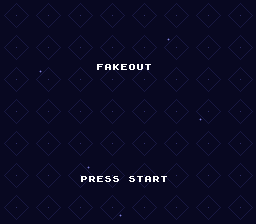
3. Put the FAKEOUT logo on the title
The text title works, but the game deserves a logo. The title screen turns off background 2 because that layer holds the walls and bricks. That layer can show a full-screen logo instead, as long as each game switches it back to the playfield.
Convert the logo
The logo uses 214 8 x 8 tiles and four 16-color SNES palettes. Copy title-logo.png into your project root. It is a transparent 256 x 224 indexed image, with the 256 x 112 logo positioned 16 pixels from the top.

Open Makefile
Convert the full-screen image into tiles, a map, and palettes. Add this rule to your Makefile and make the data object depend on the result:
Goal: Convert the logo into BG2 tiles, four palettes, and a screen map.
Makefile — in the file, apply these changes:
backdrop.pic: backdrop.png
	$(GFXCONV) -s 8 -o 4 -u 4 -e 0 -p -m -t png -i $<

src/data.obj: paddle.pic ball.pic playfield.pic backdrop.pic


src/main.obj src/game.obj: src/game.h

clean: cleanBuildRes cleanRom cleanGfx cleanAudiobackdrop.pic: backdrop.png
$(GFXCONV) -s 8 -o 4 -u 4 -e 0 -p -m -t png -i $<
title-logo.pic: title-logo.png
$(GFXCONV) -s 8 -o 64 -u 16 -e 3 -p -m -t png -i $<
src/data.obj: paddle.pic ball.pic playfield.pic backdrop.pic title-logo.pic
src/main.obj src/game.obj: src/game.h
clean: cleanBuildRes cleanRom cleanGfx cleanAudioThe converter writes 64 palette colors beginning at palette 3; the dependency ensures these assets exist before assembly.
Load the logo
Open src\data.asm
In src\data.asm, add a separate asset section:
Goal: Store the title artwork in its own ROM asset section.
src\data.asm — in the file, apply these changes:
.incbin "playfield.pal"

.ends
.incbin "playfield.pal"

.ends
.section ".title_logo_assets" superfree
title_logo_tiles:
.incbin "title-logo.pic"
title_logo_tiles_end:
title_logo_map:
.incbin "title-logo.map"
title_logo_palette:
.incbin "title-logo.pal"
.ends
The section exposes tile, map, and palette labels, including a tile end label for calculating upload length.
Open src\main.c
Declare the assets in src\main.c:
Goal: Make the title's binary assets accessible to C.
src\main.c — in file-scope declarations before prepare_bricks, apply these changes:
extern u8 playfield_tiles[], playfield_tiles_end[];
extern u16 playfield_map[];
extern u8 playfield_palette[];


const t_metasprite paddle_frame0[] = {PADDLE_PIECES(0)};
const t_metasprite paddle_frame1[] = {PADDLE_PIECES(1)};extern u8 playfield_tiles[], playfield_tiles_end[];
extern u16 playfield_map[];
extern u8 playfield_palette[];
extern u8 title_logo_tiles[], title_logo_tiles_end[];
extern u8 title_logo_map[], title_logo_palette[];
const t_metasprite paddle_frame0[] = {PADDLE_PIECES(0)};
const t_metasprite paddle_frame1[] = {PADDLE_PIECES(1)};The declarations match the assembly labels and allow subtraction of the tile addresses.
Upload the logo tiles and palettes, and put its 32 x 28 tile map at 0x7400, while the screen is off in init_video:
Goal: Preload the title artwork without overwriting the playfield.
src\main.c — in init_video, apply these changes:
    consoleInitDefaultText(1);
    bgSetGfxPtr(0, 0x3000);
    bgSetMapPtr(0, 0x6800, SC_32x32);


    bgInitTileSet(1, playfield_tiles, playfield_palette, 2,
                  playfield_tiles_end - playfield_tiles, 16 * 2, BG_16COLORS,
0x4000); consoleInitDefaultText(1);
bgSetGfxPtr(0, 0x3000);
bgSetMapPtr(0, 0x6800, SC_32x32);
bgInitTileSet(1, title_logo_tiles, title_logo_palette, 3,
title_logo_tiles_end - title_logo_tiles, 64 * 2, BG_16COLORS,
0x2000);
dmaCopyVram(title_logo_map, 0x7400, 32 * 28 * 2);
bgInitTileSet(1, playfield_tiles, playfield_palette, 2,
playfield_tiles_end - playfield_tiles, 16 * 2, BG_16COLORS,
0x4000);The logo's tiles fill 0x2000, the tile slot Part 2 left free, and its map goes at 0x7400, right after the backdrop map. Palettes 3 through 6 are reserved for it.
Switch background 2 between screens
On the title, point background 2 at the logo instead of turning it off. When a game starts, point it back at the playfield:
Goal: Show the logo on BG2 instead of the text-only title.
src\main.c — in show_title, apply these changes:
{
    screen = SCREEN_TITLE;
    clear_text();
    bgSetDisable(1);
    consoleDrawText(12, 8, "FAKEOUT");

    consoleDrawText(10, 22, "PRESS START");
    start_music();
}{
screen = SCREEN_TITLE;
clear_text();
bgSetGfxPtr(1, 0x2000);
bgSetMapPtr(1, 0x7400, SC_32x32);
bgSetEnable(1);
consoleDrawText(10, 22, "PRESS START");
start_music();
}BG2 switches to the logo's tile and map addresses, leaving BG3 visible through the logo's transparent pixels.
Goal: Switch BG2 back to the playfield whenever gameplay begins.
src\main.c — in show_game, apply these changes:
{
    screen = SCREEN_GAME;
    clear_text();


    bgSetEnable(1);
    game_reset(&game);
shown_score = -1;{
screen = SCREEN_GAME;
clear_text();
bgSetGfxPtr(1, 0x4000);
bgSetMapPtr(1, PLAYFIELD_MAP, SC_32x32);
bgSetEnable(1);
game_reset(&game);
shown_score = -1;init_video already uploaded both pictures, so switching screens only changes where background 2 reads its tiles and map. The logo replaces the FAKEOUT text, and the backdrop still shows through its transparent pixels.
Checkpoint: Build and run. The title shows the FAKEOUT logo above PRESS START, in front of the starfield backdrop, with music and no sprites. Press Start: the walls, bricks, and HUD appear as before. When the game is over, press B or Start: the logo comes back, and Start begins a fresh game with all 70 bricks.
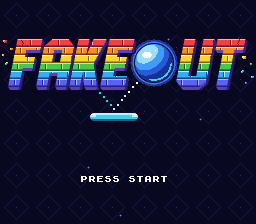
4. Fade between screens
Brightness and forced blank
The SNES has a master brightness from 0 (black) to 15 (full). PVSnesLib's setBrightness(level) sets it. Black hides the switch between already loaded background maps. It is not the same as forced blank, which setScreenOff() enables to permit VRAM uploads outside VBlank.
PVSnesLib also has setFadeEffect, but it runs the whole fade inside one call, waiting for 16 frames before it returns. During that time your loop does not run: no sprite updates, no spcProcess, no input. Instead, this game changes the brightness by one step per frame and keeps its loop running.
Like VRAM uploads, display registers should change during vertical blank, right after WaitForVBlank. Changing them in the middle of a frame can change the top and bottom of the picture differently.
Fade one step per frame
Open src\main.c
Add three variables:
Goal: Track a fade's target screen, brightness, and direction.
src\main.c — in file-scope declarations before prepare_bricks, apply these changes:
static int ball_glimmer;
static int shown_paddle_frame;
static int screen;
static int ball_glimmer;
static int shown_paddle_frame;
static int screen;
static int next_screen;
static int brightness;
static int fade_step;
fade_step is -1 while fading out, 1 while fading in, and 0 when no fade is running. Add fade_to and update_fade before update_title, and use fade_to instead of switching screens directly:
Goal: Request a screen transition by beginning a fade-out.
src\main.c — add this complete fade_to function immediately before update_title:
static void fade_to(int target)
{
    next_screen = target;
    fade_step = -1;
}
The target is saved for the black-screen midpoint; -1 decreases brightness.
Goal: Advance the fade one step per frame and switch screens at black.
src\main.c — add this complete update_fade function immediately before update_title:
static void update_fade(void)
{
    if (fade_step < 0 && brightness == 0)
    {
        /* The screen is black, so it is safe to rebuild it. */ // [!code ++]
        if (next_screen == SCREEN_TITLE)
        {
            show_title();
        }
        else
        {
            show_game();
        }
        fade_step = 1;
    }
    else if (fade_step != 0)
    {
        brightness += fade_step;
        if (brightness == 15)
        {
            fade_step = 0;
        }
    }
}
At brightness 0 the handler draws the target screen, reverses the fade, and stops at full brightness 15.
Goal: Fade from title to gameplay instead of switching immediately.
src\main.c — in update_title, apply these changes:
{
    if (pressed & KEY_START)
    {
        show_game();
    }
}{
if (pressed & KEY_START)
{
fade_to(SCREEN_GAME);
}
}Start now requests SCREEN_GAME through the transition helper.
Goal: Fade back to the title without reusing the continuation press as gameplay input.
src\main.c — in update_game, apply these changes:
    if ((game.state == STATE_GAME_OVER || game.state == STATE_WON) &&
        (pressed & (KEY_B | KEY_START)))
    {
        show_title();
        return;
    }

movement = 0; if ((game.state == STATE_GAME_OVER || game.state == STATE_WON) &&
(pressed & (KEY_B | KEY_START)))
{
fade_to(SCREEN_TITLE);
pressed = 0;
}
movement = 0;update_game no longer returns early. It keeps drawing the paddle and ball while the screen fades, and pressed = 0 stops the same press from starting a new game.
Run the fade from the main loop
The game now fades in from black when it boots, so it no longer calls setScreenOn. Ignore the controller while a fade runs, so a second press cannot start another one, and apply the brightness after WaitForVBlank:
Goal: Fade the initial title in from black.
src\main.c — in main, apply these changes:
    init_video();
    show_title();
    setScreenOn();


    while (1)
    {
    init_video();
    show_title();
    brightness = 0;
    fade_step = 1;

    while (1)
    {
Brightness starts at 0, and the positive step reveals the title over later frames.
Goal: Advance fades each frame and suppress controller input while they run.
src\main.c — in main, apply these changes:
    {
        held = padsCurrent(0);
        pressed = padsDown(0);


        if (screen == SCREEN_TITLE)
        {
update_title(pressed); {
held = padsCurrent(0);
pressed = padsDown(0);
if (fade_step != 0)
{
held = 0;
pressed = 0;
}
update_fade();
if (screen == SCREEN_TITLE)
{
update_title(pressed);Clearing held and pressed buttons prevents overlapping transitions; the fade continues without blocking sound-driver processing.
Goal: Apply the new brightness during VBlank.
src\main.c — in main, apply these changes:
        spcProcess();
        oamInitDynamicSpriteEndFrame();
        WaitForVBlank();

        oamVramQueueUpdate();
        upload_bricks();
} spcProcess();
oamInitDynamicSpriteEndFrame();
WaitForVBlank();
setBrightness(brightness);
oamVramQueueUpdate();
upload_bricks();
}A full fade takes 15 frames out and 15 frames in, about half a second at 60 frames per second.
Checkpoint: Build and run. The title fades in from black. Press Start: the title fades out, and the game fades in. When the game is over, press B or Start: the paddle and ball stay visible while the screen fades out, then the title fades in. Pressing buttons during a fade does nothing.
5. Paint a sky gradient with HDMA
What HDMA does
The TV draws the picture one line at a time, top to bottom, with a short pause (horizontal blank) after each line. HDMA (horizontal-blank DMA) copies a few bytes into hardware registers during those pauses, following a table you prepare. That lets you change a setting partway down the screen without any CPU work while the frame draws.
Color 0 is the backdrop color: the SNES shows it wherever every layer is transparent, such as between the stars of the backdrop pattern. Changing color 0 every few lines turns that solid color into a vertical gradient.
PVSnesLib's setModeHdmaColor(channel, table) sets up an HDMA channel to write color 0 from your table. Each table entry is five bytes:
| Byte | Meaning |
|---|---|
| 0 | Number of lines to draw before the next entry |
| 1, 2 | Color number to change (0), written twice |
| 3, 4 | The new color, low byte then high byte |
A line count of 0 ends the table. The screen is 224 lines tall, so 28 entries of 8 lines cover all of it.
Build the table
Open src\main.c
In src\main.c, add the sizes and the table. HDMA reads the table again every frame, so it must be a global (or static) array that stays valid, not a local variable:
Goal: Divide the visible screen into twenty-eight eight-line color bands.
src\main.c — in file-scope declarations before prepare_bricks, apply these changes:
#define GLIMMER_FRAMES 5
#define GLIMMER_TICKS  3


#define PADDLE_ATTR (OBJ_PAL(0) | OBJ_PRIO(3))
#define PADDLE_PIECES(frame)                                                   \
METASPR_ITEM(0, 0, (frame), PADDLE_ATTR), \#define GLIMMER_FRAMES 5
#define GLIMMER_TICKS 3
#define GRADIENT_BANDS 28
#define GRADIENT_LINES 8
#define PADDLE_ATTR (OBJ_PAL(0) | OBJ_PRIO(3))
#define PADDLE_PIECES(frame) \
METASPR_ITEM(0, 0, (frame), PADDLE_ATTR), \Twenty-eight times eight covers all 224 visible scanlines.
Goal: Keep the HDMA table alive for the hardware to reread every frame.
src\main.c — in file-scope declarations before prepare_bricks, apply these changes:
static u16 brick_map[BRICK_ROWS][BRICK_COLS * 2];
static unsigned char row_changed[BRICK_ROWS];
static unsigned char shown_alive[BRICK_COUNT];

static char score_text[] = "000";
static char lives_text[] = "3";
static int shown_bricks = -1;static u16 brick_map[BRICK_ROWS][BRICK_COLS * 2];
static unsigned char row_changed[BRICK_ROWS];
static unsigned char shown_alive[BRICK_COUNT];
static u8 gradient_table[GRADIENT_BANDS * 5 + 1];
static char score_text[] = "000";
static char lives_text[] = "3";
static int shown_bricks = -1;The global array reserves five bytes per band plus a terminating zero.
Add init_gradient above init_video, and call it after setMode:
Goal: Build a navy-to-purple color table and enable horizontal-blank color changes.
src\main.c — add this complete init_gradient function immediately before init_video:
static void init_gradient(void)
{
    int band;
    u16 color;
    u8 *entry;
    entry = gradient_table;
    for (band = 0; band < GRADIENT_BANDS; ++band)
    {
        color = RGB5(1 + band / 3, 1 + band / 9, 4 + band / 4);
        entry[0] = GRADIENT_LINES;
        entry[1] = 0;
        entry[2] = 0;
        entry[3] = color & 0xFF;
        entry[4] = color >> 8;
        entry += 5;
    }
    entry[0] = 0;
    setModeHdmaColor(HDMA_CHANNEL6, gradient_table);
}
Each entry sets color 0 for eight scanlines; channel 6 reads the finished table.
Goal: Enable the gradient after selecting the background mode.
src\main.c — in init_video, apply these changes:
    init_sprite(0, ball_tiles, 0, OBJ_SIZES);

    setMode(BG_MODE1, 0);


    for (row = 0; row < BRICK_ROWS; ++row)
{ init_sprite(0, ball_tiles, 0, OBJ_SIZES);
setMode(BG_MODE1, 0);
init_gradient();
for (row = 0; row < BRICK_ROWS; ++row)
{RGB5(r, g, b) packs three 0-31 values into one SNES color. From top to bottom, red rises from 1 to 10, green from 1 to 4, and blue from 4 to 10: deep navy at the top, purple at the bottom. Try other formulas to change the sky.
setModeHdmaColor always uses HDMA channel 6, so pass HDMA_CHANNEL6. If you add other HDMA effects later, give them a different channel.
Checkpoint: Build and run. The backdrop color is no longer flat: the space behind the diamond pattern and stars is dark navy at the top and fades to purple at the bottom, on both the title and the game screen. The fades from section 4 darken the gradient too.
6. Pixelate the screen when a life is lost
The mosaic register
The SNES can draw background layers as big blocks of pixels, from 1 x 1 (normal) to 16 x 16. One register, REG_MOSAIC, controls it:
- the top four bits are the block size minus 1 (0 to 15);
- the bottom four bits choose the layers (
MOSAIC_BG1toMOSAIC_BG4).
Mosaic affects backgrounds only, not sprites. As with fades, PVSnesLib's setMosaicEffect waits inside the call, so this game changes the size one step per frame instead.
Swell and shrink
Open src\main.c
In src\main.c, add a length and a timer:
Goal: Set the life-loss mosaic animation to thirty frames.
src\main.c — in file-scope declarations before prepare_bricks, apply these changes:
#define GRADIENT_BANDS 28
#define GRADIENT_LINES 8


#define PADDLE_ATTR (OBJ_PAL(0) | OBJ_PRIO(3))
#define PADDLE_PIECES(frame)                                                   \
METASPR_ITEM(0, 0, (frame), PADDLE_ATTR), \#define GRADIENT_BANDS 28
#define GRADIENT_LINES 8
#define MOSAIC_FRAMES 30
#define PADDLE_ATTR (OBJ_PAL(0) | OBJ_PRIO(3))
#define PADDLE_PIECES(frame) \
METASPR_ITEM(0, 0, (frame), PADDLE_ATTR), \The duration covers both growth and shrinkage of the pixel blocks.
Goal: Track the remaining mosaic animation time between frames.
src\main.c — in file-scope declarations before prepare_bricks, apply these changes:
static int next_screen;
static int brightness;
static int fade_step;
static int next_screen;
static int brightness;
static int fade_step;
static int mosaic_timer;
A zero timer means no effect is active.
Add update_mosaic above update_title:
Goal: Grow and shrink background pixel blocks without blocking the main loop.
src\main.c — add this complete update_mosaic function immediately before update_title:
static void update_mosaic(void)
{
    int size;
    if (mosaic_timer == 0)
    {
        return;
    }
    --mosaic_timer;
    /* Grow to the biggest block size, then shrink back to normal. */ // [!code ++]
    size = mosaic_timer;
    if (size > MOSAIC_FRAMES / 2)
    {
        size = MOSAIC_FRAMES - size;
    }
    REG_MOSAIC = (size << 4) | MOSAIC_BG1 | MOSAIC_BG2 | MOSAIC_BG3;
}
As the timer counts from 29 down to 0, size goes 1, 2, ... 15, then 14, 13, ... 0. The last write has size 0, so the screen ends up normal again.
Start the effect when the ball is lost: the state changes from PLAYING to READY (lives left) or to GAME_OVER (no lives left):
Goal: Trigger mosaic only when a playing ball is lost.
src\main.c — in update_game, apply these changes:
    }
    old_state = game.state;
    game_tick(&game, movement, pressed & (KEY_B | KEY_START));


    play_sounds(old_state);
draw_sprites(); }
old_state = game.state;
game_tick(&game, movement, pressed & (KEY_B | KEY_START));
if (old_state == STATE_PLAYING &&
(game.state == STATE_READY || game.state == STATE_GAME_OVER))
{
mosaic_timer = MOSAIC_FRAMES;
}
play_sounds(old_state);
draw_sprites();The transition test includes both a nonfinal miss and the final game-over miss.
Set the timer at boot, and apply the mosaic after WaitForVBlank:
Goal: Begin with no mosaic effect, regardless of startup RAM contents.
src\main.c — in main, apply these changes:
show_title();
brightness = 0;
fade_step = 1;
while (1)
{ show_title();
brightness = 0;
fade_step = 1;
mosaic_timer = 0;
while (1)
{Explicit initialization prevents a random pixelation sequence at boot.
Goal: Update the mosaic register alongside other VBlank display changes.
src\main.c — in main, apply these changes:
oamInitDynamicSpriteEndFrame();
WaitForVBlank();
setBrightness(brightness);
oamVramQueueUpdate();
upload_bricks();
} oamInitDynamicSpriteEndFrame();
WaitForVBlank();
setBrightness(brightness);
update_mosaic();
oamVramQueueUpdate();
upload_bricks();
}The per-frame call writes the next block size and eventually restores normal pixels.
Checkpoint: Build and run. Launch the ball and miss it. The walls, bricks, backdrop, and text break up into growing blocks for a quarter of a second, then sharpen back to normal over the next quarter second. The paddle and ball stay sharp. The same happens when the last life is lost, behind GAME OVER. Nothing pixelates when the ball hits a wall, brick, or the paddle.
7. Pause with a dimmed overlay
Color math
The SNES can combine each pixel with a second color before showing it. This is called color math, and it is how SNES games make shadows, glass, water, and darkened screens. Two registers control it, and PVSnesLib sets both with setColorEffect(a, b):
- the first value (here 0) says to combine with the fixed color, a single color you set with
setColorIntensity; - the second value chooses subtract or add (
CM_SUB_MAINSUB), whether to halve the result (CM_DIV2_DIVIDE), and which layers it affects (CM_MSCR_...).
With a black fixed color, "subtract black, then halve" simply halves every affected pixel: a half-transparent black layer. This game affects the backdrop color (CM_MSCR_BACK), BG2 (walls and bricks), and BG3 (stars) but not BG1, so the text stays bright. Sprites that use palettes 0 to 3, like the paddle and ball, are never affected by color math, so they stay bright too.
Pause and resume
Open src\main.c
In src\main.c, add a paused flag and a matching shown_paused so draw_text knows when to redraw:
Goal: Redraw prompts when pause status changes, even if gameplay state does not.
src\main.c — in file-scope declarations before prepare_bricks, apply these changes:
static int shown_score = -1;
static int shown_lives = -1;
static int shown_state = -1;
static int paddle_glimmer;
static int ball_glimmer;
static int shown_paddle_frame;static int shown_score = -1;
static int shown_lives = -1;
static int shown_state = -1;
static int shown_paused = -1;
static int paddle_glimmer;
static int ball_glimmer;
static int shown_paddle_frame;The separate cache recognizes pause transitions inside STATE_PLAYING.
Goal: Track whether gameplay updates should be frozen.
src\main.c — in file-scope declarations before prepare_bricks, apply these changes:
static int brightness;
static int fade_step;
static int mosaic_timer;
static int brightness;
static int fade_step;
static int mosaic_timer;
static int paused;paused belongs to the screen controller rather than the independent gameplay rules.
Show the pause message in draw_text:
Goal: Include pause status when deciding whether prompts need redrawing.
src\main.c — in draw_text, apply these changes:
shown_lives = game.lives;
}
if (shown_state == game.state)
{
return;
} shown_lives = game.lives;
}
if (shown_state == game.state && shown_paused == paused)
{
return;
}The early return now requires both state and pause status to match the cache.
Goal: Show pause instructions instead of the normal gameplay prompts.
src\main.c — in draw_text, apply these changes:
consoleDrawText(3, 18, " ");
consoleDrawText(3, 20, " ");
if (game.state == STATE_READY)
{
consoleDrawText(7, 18, "B / START TO LAUNCH");
consoleDrawText(6, 20, "LEFT / RIGHT TO MOVE");
}
consoleDrawText(3, 18, " ");
consoleDrawText(3, 20, " ");
if (paused)
{
consoleDrawText(13, 18, "PAUSED");
consoleDrawText(8, 20, "START TO RESUME");
}
else if (game.state == STATE_READY)
{
consoleDrawText(7, 18, "B / START TO LAUNCH");
consoleDrawText(6, 20, "LEFT / RIGHT TO MOVE");
}The pause branch takes priority and leaves the score and life digits unchanged.
Goal: Remember the pause status represented by the newly drawn prompts.
src\main.c — in draw_text, apply these changes:
consoleDrawText(7, 20, "B / START: CONTINUE");
}
shown_state = game.state;
} consoleDrawText(7, 20, "B / START: CONTINUE");
}
shown_state = game.state;
shown_paused = paused;
}Updating the cache prevents the same pause text from being rewritten every frame.
A new game is never paused:
Goal: Start every new game unpaused.
src\main.c — in show_game, apply these changes:
bgSetMapPtr(1, PLAYFIELD_MAP, SC_32x32);
bgSetEnable(1);
game_reset(&game);
shown_score = -1;
shown_lives = -1;
shown_state = -1; bgSetMapPtr(1, PLAYFIELD_MAP, SC_32x32);
bgSetEnable(1);
game_reset(&game);
paused = 0;
shown_score = -1;
shown_lives = -1;
shown_state = -1;Resetting the flag ensures a fresh game can accept movement and launch input.
Add set_paused above update_title. It also pauses the music:
Goal: Synchronize pause status with music and the dimmed background effect.
src\main.c — add this complete set_paused function immediately before update_title:
static void set_paused(int on)
{
paused = on;
if (paused)
{
/* Don't replay the last hit's glimmer on every paused frame. */ // [!code ++]
game.hits = 0;
spcPauseMusic();
/* Halve the backdrop and BG2/BG3; BG1 text and sprites stay bright. */ // [!code ++]
setColorIntensity(CM_APPLY_RED | CM_APPLY_GREEN | CM_APPLY_BLUE, 0);
setColorEffect(0, CM_SUB_MAINSUB | CM_DIV2_DIVIDE | CM_MSCR_BACK |
CM_MSCR_BG2 | CM_MSCR_BG3);
}
else
{
spcResumeMusic();
setColorEffect(0, 0);
}
}draw_sprites keeps running while paused, and it starts a glimmer whenever game.hits is set. Clearing hits stops the last tick's hit from restarting the glimmer every frame. setColorEffect(0, 0) turns color math off again.
Freeze the game
In update_game, Start toggles the pause during play. While paused, skip the game tick, the mosaic trigger, and the sounds, but keep drawing:
Goal: Toggle pause on a new Start press during play.
src\main.c — in update_game, apply these changes:
fade_to(SCREEN_TITLE);
pressed = 0;
}
movement = 0;
if (held & KEY_LEFT)
{
--movement;
}
if (held & KEY_RIGHT)
{
++movement;
    }
    old_state = game.state;
    game_tick(&game, movement, pressed & (KEY_B | KEY_START));
    if (old_state == STATE_PLAYING &&
        (game.state == STATE_READY || game.state == STATE_GAME_OVER))
    {
        mosaic_timer = MOSAIC_FRAMES;
    }

    play_sounds(old_state);
draw_sprites(); fade_to(SCREEN_TITLE);
pressed = 0;
}
if (game.state == STATE_PLAYING && (pressed & KEY_START))
{
set_paused(!paused);
pressed = 0;
}
play_sounds(old_state);
draw_sprites();The press is consumed by the pause toggle instead of also reaching gameplay.
Goal: Skip movement, life-loss detection, and event sounds while paused.
src\main.c — in update_game, apply these changes:
pressed = 0;
}
play_sounds(old_state);
draw_sprites();
prepare_bricks();
draw_text(); pressed = 0;
}
if (!paused)
{
movement = 0;
if (held & KEY_LEFT)
{
--movement;
}
if (held & KEY_RIGHT)
{
++movement;
}
old_state = game.state;
game_tick(&game, movement, pressed & (KEY_B | KEY_START));
if (old_state == STATE_PLAYING &&
(game.state == STATE_READY || game.state == STATE_GAME_OVER))
{
mosaic_timer = MOSAIC_FRAMES;
}
play_sounds(old_state);
}
draw_sprites();
prepare_bricks();
draw_text();The drawing calls remain outside the guarded block, so sprites and text stay visible. Pausing only works while the ball is in play. In the READY state, Start still launches the ball.
Checkpoint: Build and run. Launch the ball, then press Start. The ball stops, the music stops, the walls, bricks, and sky darken to half brightness, and PAUSED / START TO RESUME appear in full brightness. The score, paddle, and ball stay bright. The D-pad does nothing. Press Start again: the screen brightens, the music continues where it stopped, and the ball carries on from the same place.
8. Save the high score
Battery-backed save RAM
Many SNES cartridges have a small RAM chip powered by a battery, so it keeps its contents when the console is off. This is SRAM (save RAM). A ROM's header tells the console and emulators whether the cartridge has it, and how big it is.
Open Makefile
PVSnesLib's build fills in the header from Makefile variables. Set them in your Makefile before the include line, after ROMTITLE:
Goal: Declare a battery-backed cartridge with two kilobytes of save RAM.
Makefile — in the file, apply these changes:
export ROMNAME := breakout
export ROMTITLE := BREAKOUT TUTORIAL
include $(PVSNESLIB_HOME)/devkitsnes/snes_rules
export ROMNAME := breakout
export ROMTITLE := BREAKOUT TUTORIAL
# ROM + save RAM + battery, with 2 KB of save RAM for the high score. #
export CARTRIDGETYPE := 02
export SRAMSIZE := 01
include $(PVSNESLIB_HOME)/devkitsnes/snes_rulesThe header is built once, so after changing these values run make clean before make.
consoleCopySram(data, size) copies bytes from RAM into SRAM, and consoleLoadSram(data, size) copies them back. Both start at the beginning of SRAM.
Check before you trust it
SRAM that has never been written holds whatever it powered up with, which might be random bytes. So the save stores three values:
- a magic number,
0x4B42(the lettersKB), that says "this game wrote this"; - the high score;
- a check value, the high score with every bit flipped.
If the magic number or the check value is wrong, the game ignores the save and starts from 0.
Load, record, and save
Open src\main.c
In src\main.c, add the magic number and the save layout:
Goal: Identify save data written by this game.
src\main.c — in file-scope declarations before prepare_bricks, apply these changes:
#define MOSAIC_FRAMES 30
#define PADDLE_ATTR (OBJ_PAL(0) | OBJ_PRIO(3))
#define PADDLE_PIECES(frame) \
METASPR_ITEM(0, 0, (frame), PADDLE_ATTR), \
#define MOSAIC_FRAMES 30
#define SAVE_MAGIC 0x4B42
#define PADDLE_ATTR (OBJ_PAL(0) | OBJ_PRIO(3))
#define PADDLE_PIECES(frame) \
METASPR_ITEM(0, 0, (frame), PADDLE_ATTR), \The magic constant distinguishes a valid record from arbitrary SRAM bytes.
Goal: Store the score alongside its magic number and complementary check value.
src\main.c — in file-scope declarations before prepare_bricks, apply these changes:
enum Screen
{
SCREEN_TITLE,
SCREEN_GAME
};
extern char SOUNDBANK__;enum Screen
{
SCREEN_TITLE,
SCREEN_GAME
};
typedef struct SaveData
{
u16 magic;
u16 high_score;
u16 check;
} SaveData;
extern char SOUNDBANK__;Three u16 fields make a compact save record for validation on the next boot.
Add the title-screen text and the variables:
Goal: Reserve a title-screen string for displaying the current record.
src\main.c — in file-scope declarations before prepare_bricks, apply these changes:
static u8 gradient_table[GRADIENT_BANDS * 5 + 1];
static char score_text[] = "000";
static char lives_text[] = "3";
static int shown_bricks = -1;
static int shown_score = -1;
static int shown_lives = -1;static u8 gradient_table[GRADIENT_BANDS * 5 + 1];
static char score_text[] = "000";
static char lives_text[] = "3";
static char high_score_text[] = "HIGH SCORE 000";
static int shown_bricks = -1;
static int shown_score = -1;
static int shown_lives = -1;The final three characters will be replaced with score digits.
Goal: Track loaded save data, the record, and whether this game set a new record.
src\main.c — in file-scope declarations before prepare_bricks, apply these changes:
static int fade_step;
static int mosaic_timer;
static int paused;
static int fade_step;
static int mosaic_timer;
static int paused;
static SaveData save;
static unsigned int high_score;
static int new_high_score;The save buffer serves SRAM transfers; the other variables serve comparison and prompts.
Both the HUD and the title now print three-digit scores, so move the digit code from draw_text into a helper. Also show NEW HIGH SCORE! under the end-of-game message:
Goal: Share three-digit score formatting between the HUD and title.
src\main.c — add this complete format_score function immediately before draw_text:
static void format_score(char *text, unsigned int score)
{
text[0] = '0' + score / 100;
text[1] = '0' + (score / 10) % 10;
text[2] = '0' + score % 10;
}The helper writes decimal digits into an existing string without changing its terminator.
Goal: Use the shared formatter for the gameplay score.
src\main.c — in draw_text, apply these changes:
{
if (shown_score != game.score)
{
score_text[0] = '0' + game.score / 100;
score_text[1] = '0' + (game.score / 10) % 10;
score_text[2] = '0' + game.score % 10;
consoleDrawText(8, 1, score_text);
shown_score = game.score;
}{
if (shown_score != game.score)
{
format_score(score_text, game.score);
consoleDrawText(8, 1, score_text);
shown_score = game.score;
}This replaces the inline digit calculations without changing the HUD's cache behavior.
Goal: Announce a new record beneath the end-of-game message.
src\main.c — in draw_text, apply these changes:
else if (game.state == STATE_WON)
{
consoleDrawText(12, 18, "YOU WIN!");
        consoleDrawText(7, 20, "B / START: CONTINUE");
    }
    shown_state = game.state;
    shown_paused = paused;
} else if (game.state == STATE_WON)
{
consoleDrawText(12, 18, "YOU WIN!");
consoleDrawText(7, 20, "B / START: CONTINUE");
}
if (new_high_score)
{
consoleDrawText(8, 22, "NEW HIGH SCORE!");
}
shown_state = game.state;
shown_paused = paused;
}The message is drawn only when the record flag has been set for this game.
Add the save functions after play_sounds:
Goal: Accept a saved score only when its magic and check value agree.
src\main.c — add this complete load_high_score function immediately before init_sprite:
static void load_high_score(void)
{
    consoleLoadSram((u8 *)&save, sizeof(save));
    /* New or corrupt save RAM holds random bytes, so check it first. */ // [!code ++]
    if (save.magic == SAVE_MAGIC && save.check == (save.high_score ^ 0xFFFF))
    {
        high_score = save.high_score;
    }
    else
    {
        high_score = 0;
    }
}
Invalid or unwritten SRAM produces a zero record rather than untrusted score digits.
Goal: Write a validated high-score record to cartridge SRAM.
src\main.c — add this complete save_high_score function immediately before init_sprite:
static void save_high_score(void)
{
    save.magic = SAVE_MAGIC;
    save.high_score = high_score;
    save.check = high_score ^ 0xFFFF;
    consoleCopySram((u8 *)&save, sizeof(save));
}
The writer fills the magic and bitwise-complement check before copying the record.
Goal: Save a better score once, when the game ends.
src\main.c — add this complete record_score function immediately before init_sprite:
static void record_score(int old_state)
{
    if (game.state == old_state || game.score <= high_score)
    {
        return;
    }
    if (game.state == STATE_GAME_OVER || game.state == STATE_WON)
    {
        high_score = game.score;
        new_high_score = 1;
        save_high_score();
    }
}
record_score saves only once per game, on the frame the game ends, and only if the score beats the record. Writing SRAM on every frame would be slow and pointless.
Show the record on the title, and reset the message for each new game:
Goal: Display the loaded or newly earned record on the title.
src\main.c — in show_title, apply these changes:
    bgSetGfxPtr(1, 0x2000);
    bgSetMapPtr(1, 0x7400, SC_32x32);
    bgSetEnable(1);


    consoleDrawText(10, 22, "PRESS START");
    start_music();
} bgSetGfxPtr(1, 0x2000);
bgSetMapPtr(1, 0x7400, SC_32x32);
bgSetEnable(1);
format_score(high_score_text + 11, high_score);
consoleDrawText(9, 18, high_score_text);
consoleDrawText(10, 22, "PRESS START");
start_music();
}Formatting at offset 11 changes the numeric suffix while retaining HIGH SCORE.
Goal: Clear the new-record announcement when a fresh game begins.
src\main.c — in show_game, apply these changes:
    bgSetEnable(1);
    game_reset(&game);
    paused = 0;

    shown_score = -1;
    shown_lives = -1;
shown_state = -1; bgSetEnable(1);
game_reset(&game);
paused = 0;
new_high_score = 0;
shown_score = -1;
shown_lives = -1;
shown_state = -1;high_score_text + 11 points at the 000 part of the text.
Call record_score after the sounds in update_game, and load the save at boot, before the title is drawn:
Goal: Evaluate a possible record after each active gameplay tick.
src\main.c — in update_game, apply these changes:
            mosaic_timer = MOSAIC_FRAMES;
        }
        play_sounds(old_state);

    }

draw_sprites(); mosaic_timer = MOSAIC_FRAMES;
}
play_sounds(old_state);
record_score(old_state);
}
draw_sprites();record_score uses the pre-tick state to detect the single frame when play ends.
Goal: Load the saved record before drawing the initial title.
src\main.c — in main, apply these changes:
    spcSetBank(&SOUNDBANK__);

    init_video();

    show_title();
    brightness = 0;
fade_step = 1; spcSetBank(&SOUNDBANK__);
init_video();
load_high_score();
show_title();
brightness = 0;
fade_step = 1;Loading before show_title ensures the first title uses validated SRAM data.
Emulators keep save RAM in a file, usually with the extension .srm. Most write it when you close the game or the emulator. To reset the high score, delete that file while the game is closed.
Checkpoint: Run make clean, then make, then run the game. The title shows HIGH SCORE 000. Score some points and lose all your lives: NEW HIGH SCORE! appears under GAME OVER. Continue: the title shows your score. Close the emulator completely and open the ROM again: the high score is still there. Play a worse game: no NEW HIGH SCORE!, and the record stays.
9. Steer with the SNES Mouse
How the mouse is read
The SNES Mouse plugs into a controller port, usually port 2 so a controller can stay in port 1. It does not report a position. Each frame it reports how far it moved since the last frame, plus its two buttons.
Enable mouse reading once at startup. PVSnesLib then reads the mouse every frame and fills these arrays, one entry per port:
| Array | Meaning |
|---|---|
mouseConnect[port] | 1 if a mouse is in that port |
mouse_x[port] | Horizontal movement: bit 7 is the direction (1 = left), bits 0 to 6 the distance |
mouseButton[port] | Buttons pressed this frame (mouse_L, mouse_R), like padsDown |
This game uses the mouse's horizontal movement as a direct paddle movement, so moving the mouse 10 units right moves the paddle 10 pixels right. The left button launches (like B) and the right button pauses (like Start).
Move the paddle by any amount
Open src\game.h
The D-pad moves the paddle by a fixed PADDLE_SPEED, but the mouse can move it by any amount. That clamp to the walls belongs in the game logic. In src\game.h, declare a new function:
Goal: Expose paddle movement by an arbitrary signed pixel distance.
src\game.h — in the file, apply these changes:
} Game;

void game_reset(Game *game);

void game_tick(Game *game, int movement, int action_pressed);

#endif} Game;
void game_reset(Game *game);
void game_move_paddle(Game *game, int dx);
void game_tick(Game *game, int movement, int action_pressed);
#endifThe new interface lets mouse input reuse the same wall limits as controller input.
Open src\game.c
In src\game.c, move the paddle code from game_tick into it:
Goal: Move and clamp the paddle consistently for either input device.
src\game.c — add this complete game_move_paddle function immediately before game_tick:
void game_move_paddle(Game *game, int dx)
{
    if (game->state == STATE_GAME_OVER || game->state == STATE_WON)
    {
        return;
    }
    game->paddle_x += dx;
    if (game->paddle_x < FIELD_LEFT)
    {
        game->paddle_x = FIELD_LEFT;
    }
    if (game->paddle_x + PADDLE_WIDTH > FIELD_RIGHT)
    {
        game->paddle_x = FIELD_RIGHT - PADDLE_WIDTH;
    }
}
The helper applies a signed distance, clamps both edges, and ignores movement after a game over or win.
Goal: Route D-pad movement through the same helper used by the mouse.
src\game.c — in game_tick, apply these changes:
        return;
    }

    game->paddle_x += movement * PADDLE_SPEED;
    if (game->paddle_x < FIELD_LEFT)
    {
        game->paddle_x = FIELD_LEFT;
    }
    if (game->paddle_x + PADDLE_WIDTH > FIELD_RIGHT)
    {
        game->paddle_x = FIELD_RIGHT - PADDLE_WIDTH;
    }

    if (game->state == STATE_READY)
{ return;
}
game_move_paddle(game, movement * PADDLE_SPEED);
if (game->state == STATE_READY)
{The tick still converts controller direction into PADDLE_SPEED pixels; only the shared movement and clamping code has moved.
Read the mouse
Open src\main.c
In src\main.c, add three variables:
Goal: Track the connected mouse port, frame movement, and displayed connection prompt.
src\main.c — in file-scope declarations before prepare_bricks, apply these changes:
static SaveData save;
static unsigned int high_score;
static int new_high_score;
static SaveData save;
static unsigned int high_score;
static int new_high_score;
static int mouse_port;
static int mouse_dx;
static int shown_mouse;
The port can be -1 when absent; the signed delta represents this frame's movement.
Add read_mouse above update_title. It uses the first port with a mouse, turns the movement into a signed number, and adds the buttons to pressed. Then make the title mention the mouse when one is connected, and accept B (the left button) as well as Start:
Goal: Decode mouse movement and translate its buttons into existing game actions.
src\main.c — add this complete read_mouse function immediately before update_title:
static void read_mouse(u16 *pressed)
{
    mouse_dx = 0;
    if (mouseConnect[0])
    {
        mouse_port = 0;
    }
    else if (mouseConnect[1])
    {
        mouse_port = 1;
    }
    else
    {
        mouse_port = -1;
        return;
    }
    /* Bit 7 is the direction (1 = left) and bits 0-6 are the distance. */ // [!code ++]
    mouse_dx = mouse_x[mouse_port] & 0x7F;
    if (mouse_x[mouse_port] & 0x80)
    {
        mouse_dx = -mouse_dx;
    }
    if (mouseButton[mouse_port] & mouse_L)
    {
        *pressed |= KEY_B;
    }
    if (mouseButton[mouse_port] & mouse_R)
    {
        *pressed |= KEY_START;
    }
}
The reader chooses the first connected port, decodes sign-and-magnitude X motion, and merges new left/right clicks into B/Start presses.
Goal: Show the mouse prompt only when connected and allow a click to start.
src\main.c — in update_title, apply these changes:
static void update_title(u16 pressed)
{
    if (pressed & KEY_START)


    {
        fade_to(SCREEN_GAME);
}static void update_title(u16 pressed)
{
int connected;
connected = mouse_port >= 0;
if (shown_mouse != connected)
{
if (connected)
{
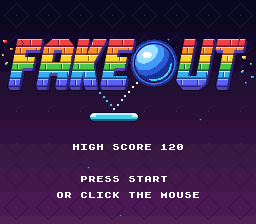
consoleDrawText(7, 24, "OR CLICK THE MOUSE");
}
else
{
consoleDrawText(7, 24, " ");
}
shown_mouse = connected;
}
if (pressed & (KEY_B | KEY_START))
{
fade_to(SCREEN_GAME);
}The connection cache avoids rewriting the prompt every frame; both B and Start now request the gameplay fade.
Make show_title redraw that line:
Goal: Force the connection prompt to refresh whenever the title reappears.
src\main.c — in show_title, apply these changes:
    format_score(high_score_text + 11, high_score);
    consoleDrawText(9, 18, high_score_text);
    consoleDrawText(10, 22, "PRESS START");

    start_music();
} format_score(high_score_text + 11, high_score);
consoleDrawText(9, 18, high_score_text);
consoleDrawText(10, 22, "PRESS START");
shown_mouse = -1;
start_music();
}Setting the cache to -1 forces the first title update to reflect the current device.
Move the paddle by the mouse before the normal game tick:
Goal: Apply the mouse's pixel delta before the controller-driven tick.
src\main.c — in update_game, apply these changes:
    if (!paused)
    {

        movement = 0;
        if (held & KEY_LEFT)
        {
    if (!paused)
    {
        game_move_paddle(&game, mouse_dx);
        movement = 0;
        if (held & KEY_LEFT)
        {
Both inputs use game_move_paddle, so their movement shares the same bounds and remains inside the unpaused update block.
Work around mouse initialization in PVSnesLib 4.6.0
In PVSnesLib 4.6.0, initMouse uses the wrong return instruction (SDK source). It returns with RTS, but a call from C needs RTL. This can crash before the title appears; adding code later can expose the problem even if it seems to work now.
Use this small C initializer instead. It sets the SDK's public mouse variables and enables its normal per-frame polling, without changing your SDK. Later PVSnesLib versions may fix this bug; check your version before switching back to initMouse.
Goal: Initialize both mouse ports without calling the broken SDK routine.
src\main.c — apply this insertion of init_mouse immediately before main:
    draw_text();
}


int main(void)
{
u16 held; draw_text();
}
static void init_mouse(void)
{
int port;
/* Avoid PVSnesLib 4.6.0 initMouse's incorrect RTS return. */ // [!code ++]
for (port = 0; port < 2; ++port)
{
mouseConnect[port] = 0;
mouseButton[port] = 0;
mousePressed[port] = 0;
mousePreviousPressed[port] = 0;
mouse_x[port] = 0;
mouse_y[port] = 0;
mouseRequestChangeSensitivity[port] = 0;
mouseSensitivity[port] = MOUSE_SLOW;
}
snes_mouse = 1;
}
int main(void)
{
u16 held;Finally, turn the mouse on at boot, read it each frame after the controller, and ignore its movement during fades too:
Goal: Enable the SDK's per-frame mouse polling at boot.
src\main.c — in main, apply these changes:
    spcSetBank(&SOUNDBANK__);

    init_video();

    load_high_score();
    show_title();
brightness = 0; spcSetBank(&SOUNDBANK__);
init_video();
init_mouse();
load_high_score();
show_title();
brightness = 0;The slow sensitivity setting provides the smallest movement increments.
Goal: Merge mouse clicks with controller presses each frame.
src\main.c — in main, apply these changes:
    {
        held = padsCurrent(0);
        pressed = padsDown(0);

        if (fade_step != 0)
        {
held = 0; {
held = padsCurrent(0);
pressed = padsDown(0);
read_mouse(&pressed);
if (fade_step != 0)
{
held = 0;Reading after the controller preserves both devices' newly pressed actions.
Goal: Suppress mouse motion during fades along with controller input.
src\main.c — in main, apply these changes:
        {
            held = 0;
            pressed = 0;

        }
        update_fade();
if (screen == SCREEN_TITLE) {
held = 0;
pressed = 0;
mouse_dx = 0;
}
update_fade();
if (screen == SCREEN_TITLE)MOUSE_SLOW is the mouse's lowest sensitivity, which gives the finest control. If the paddle feels too slow, change the assignment to mouseSensitivity[port] in init_mouse to MOUSE_MEDIUM or MOUSE_FAST.
Connect a mouse in your emulator
Leave the controller on port 1 and set port 2 to SNES Mouse in your emulator's input settings. In Mesen 2, this is Settings > Input, then the SNES tab, then Player 2. While the game window has focus, the emulator sends your PC mouse movements to the game. Some emulators only start this after you click inside the game window. Check your emulator's documentation for how to release the mouse again.
The controller still works with a mouse connected, and the game works without a mouse.
Checkpoint: Build and run with no mouse connected. Everything works as in section 8, and the title does not mention the mouse. Connect a mouse to port 2: the title shows OR CLICK THE MOUSE. Left-click to start, move the mouse to steer the paddle (it stops at both walls), left-click to launch, and right-click to pause and resume. The D-pad still works too.
Troubleshooting
| Symptom | Check |
|---|---|
| Paddle missing or in the wrong pieces after section 1 | Call oamMetaDrawDyn16 every frame with sprite slot 1. Check the frame numbers f, 8 + f, and 16 + f, and that each list ends with METASPR_TERM. |
PADDLE_PIECES compile errors | Every line of the macro except the last must end with \, with nothing after it. |
| Paddle does not glimmer | Set oambuffer[1].oamrefresh = 1 when the frame changes, and shown_paddle_frame = -1 in init_video. |
| Old text left on the title or game screen | Check clear_text clears row 1 and every even row from 8 to 24. |
| Screen stays black (sections 2 and 3) | In main, call show_title() and then setScreenOn() after init_video(). Section 2 removes setScreenOn from init_video. |
| Screen stays black (section 4 onward) | Call update_fade every frame and setBrightness(brightness) right after WaitForVBlank. Set brightness = 0 and fade_step = 1 in main. |
| Black screen after adding mouse support with PVSnesLib 4.6.0 | Use the init_mouse workaround, not the SDK's initMouse. |
| A game starts immediately after returning to the title | Zero held and pressed while fade_step is not 0, and set pressed = 0 after fade_to(SCREEN_TITLE). |
| No gradient | Call init_gradient after setMode. Check each entry is 5 bytes and the table ends with a 0. |
| Gradient shows garbage colors or stripes | gradient_table must be a global or static array, not a local variable. |
| Screen stays pixelated | Set mosaic_timer = 0 in main, and call update_mosaic every frame after WaitForVBlank. |
| Mosaic when the ball hits something | Start the mosaic only when the state changes from STATE_PLAYING. |
| Pause does not dim the screen | Call setColorIntensity and setColorEffect exactly as shown; the first argument of setColorEffect is 0. |
| Pause text is dim too | Do not include CM_MSCR_BG1 in the color effect. |
| The paddle or ball keeps glimmering while paused | Set game.hits = 0 in set_paused. |
| High score lost after closing the emulator | Put CARTRIDGETYPE and SRAMSIZE before the include line, then run make clean and make. Close the game normally so the emulator writes its save file. |
| High score shows strange digits | load_high_score must check SAVE_MAGIC and the check value before trusting the save. |
| Title never mentions the mouse | Set port 2 to SNES Mouse in your emulator, and call init_mouse in main. |
| Mouse moves the paddle the wrong way | Bit 7 of mouse_x means left: negate the distance when it is set. |
| Other problems | See the Part 2 troubleshooting table. |
Official references
- Video and effects API (
video.h) - HDMA API (
dma.h) - Mosaic register (
background.h) - Sprite and metasprite API (
sprite.h) - SRAM API (
console.h) - Mouse API (
input.h) - Sound API (
sound.h) - Examples, pinned to 4.6.0: dynamic metasprites, fading, HDMA gradient, mosaic, transparency, SRAM, and mouse
The links are pinned to PVSnesLib 4.6.0; the same headers are in pvsneslib\include\snes inside your SDK root, and the examples are in its snes-examples folder.
Previous: Part 2 — backgrounds, dynamic sprites, and sound · Next: Part 4 — scrolling, levels, and power-ups